FWDLink
Booking
Let them pick a time on the page you already share
Put booking on fwdlink.com/you next to your work and services. Visitors request a slot; you confirm from Business → Bookings — same brand, same client file when the job continues into CRM.
Page booking block · Workspace confirm · Ties into CRM clients
The problem
“What times work?” kills momentum
DMs pile up. Texts cross. Someone books the wrong day. Your calendar lives in one app and your portfolio in another — so every new client starts from zero.
The fix
One page. Real availability. Confirmed in your workspace.
Add a booking block to your public FWDLink. Set services and availability under Business → Bookings. Confirm appointments where you already run leads and jobs — not in a disconnected calendar island.
How booking fits
Booking sits on the same link as your proof
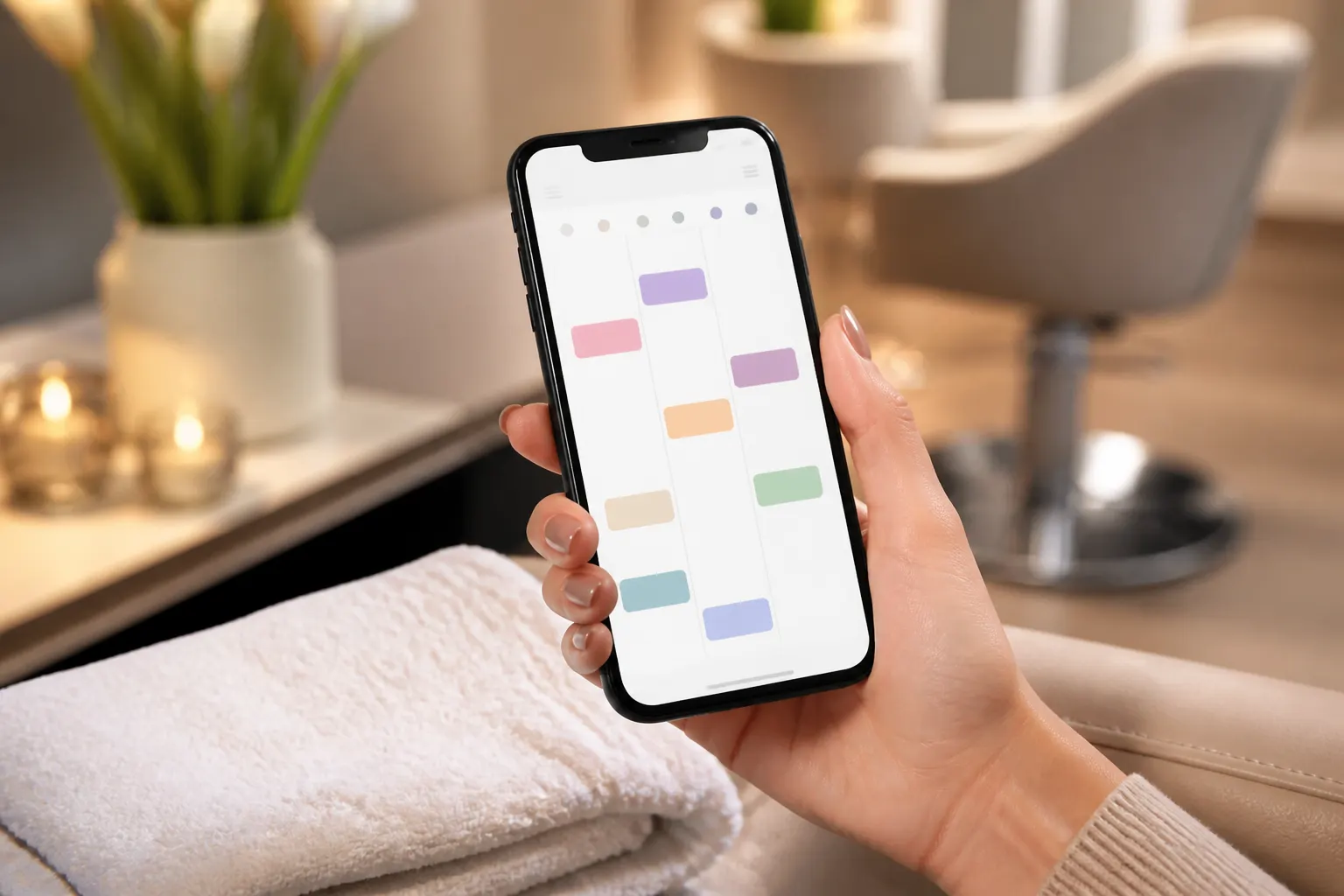
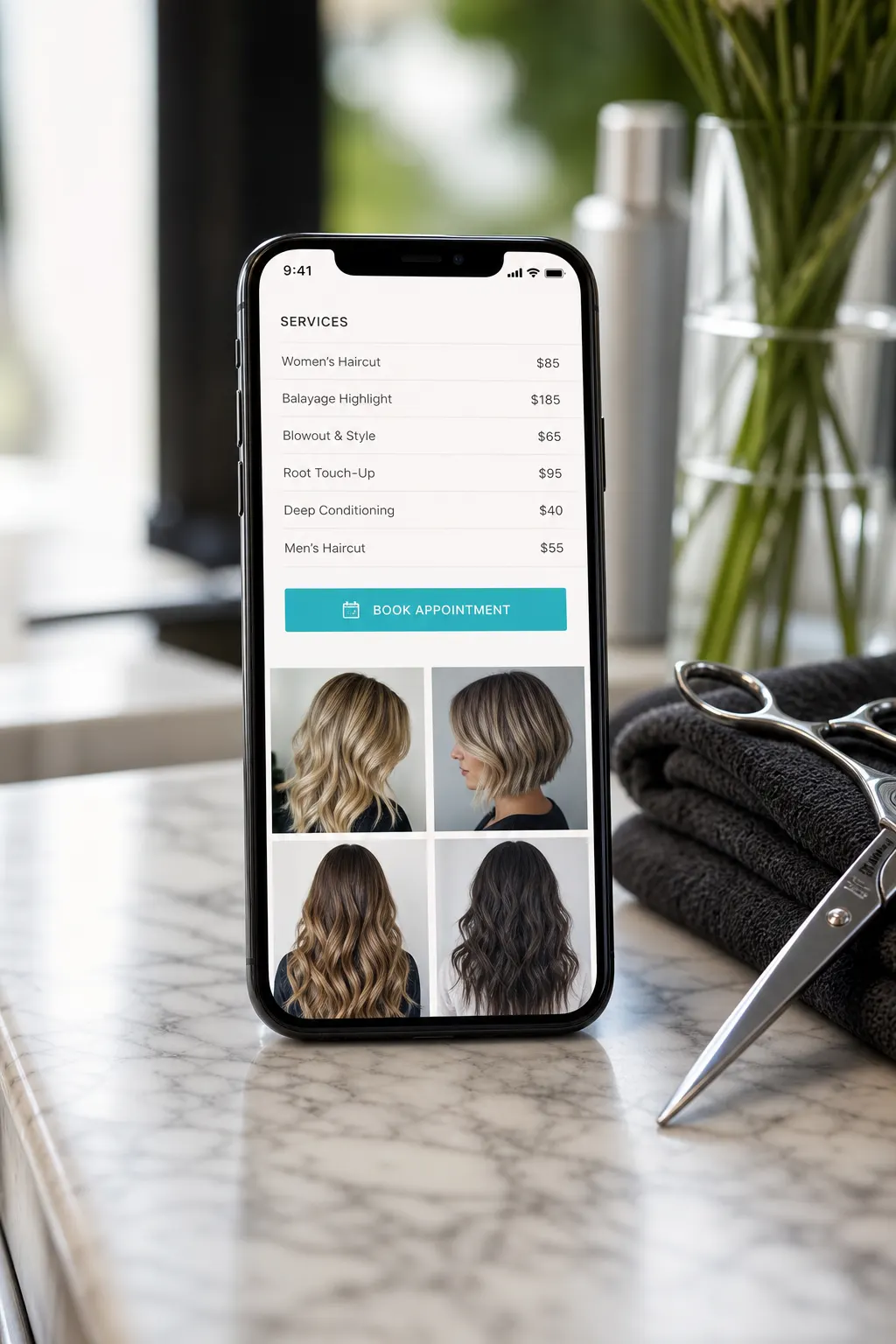
Albums, services, and a bookable window share one URL. Clients see why they should book — then pick a time without leaving your brand.
Setup
From availability to confirmed visit
Four steps — no second booking product required.
01
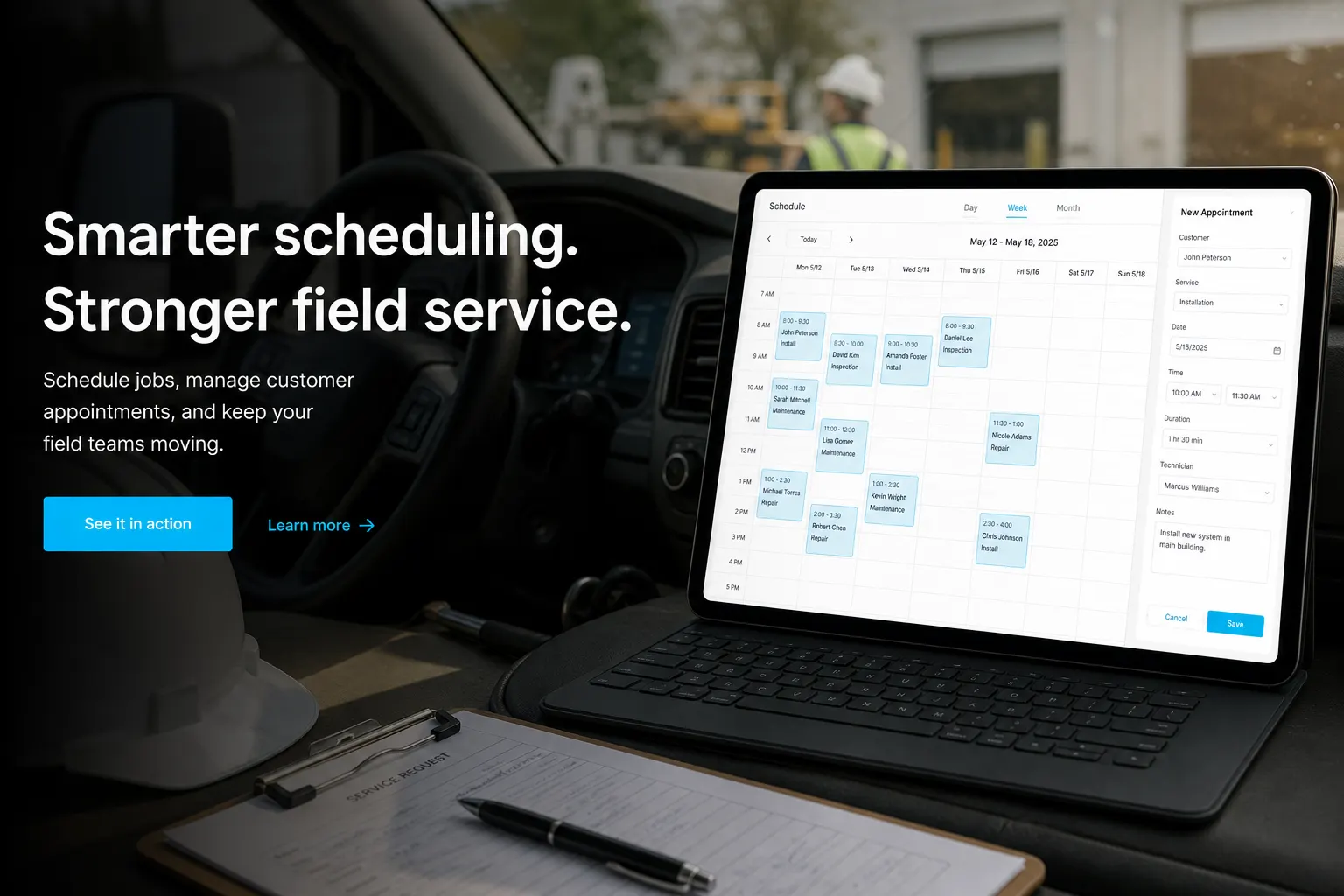
Set services & availability
Open Business → Bookings. Define what people can request and when you are open.
02
Add a booking block
Place booking on your public page next to galleries, links, or Get quote.
03
Share one URL
Bio, Google Business, QR on the door — same fwdlink.com/you.
04
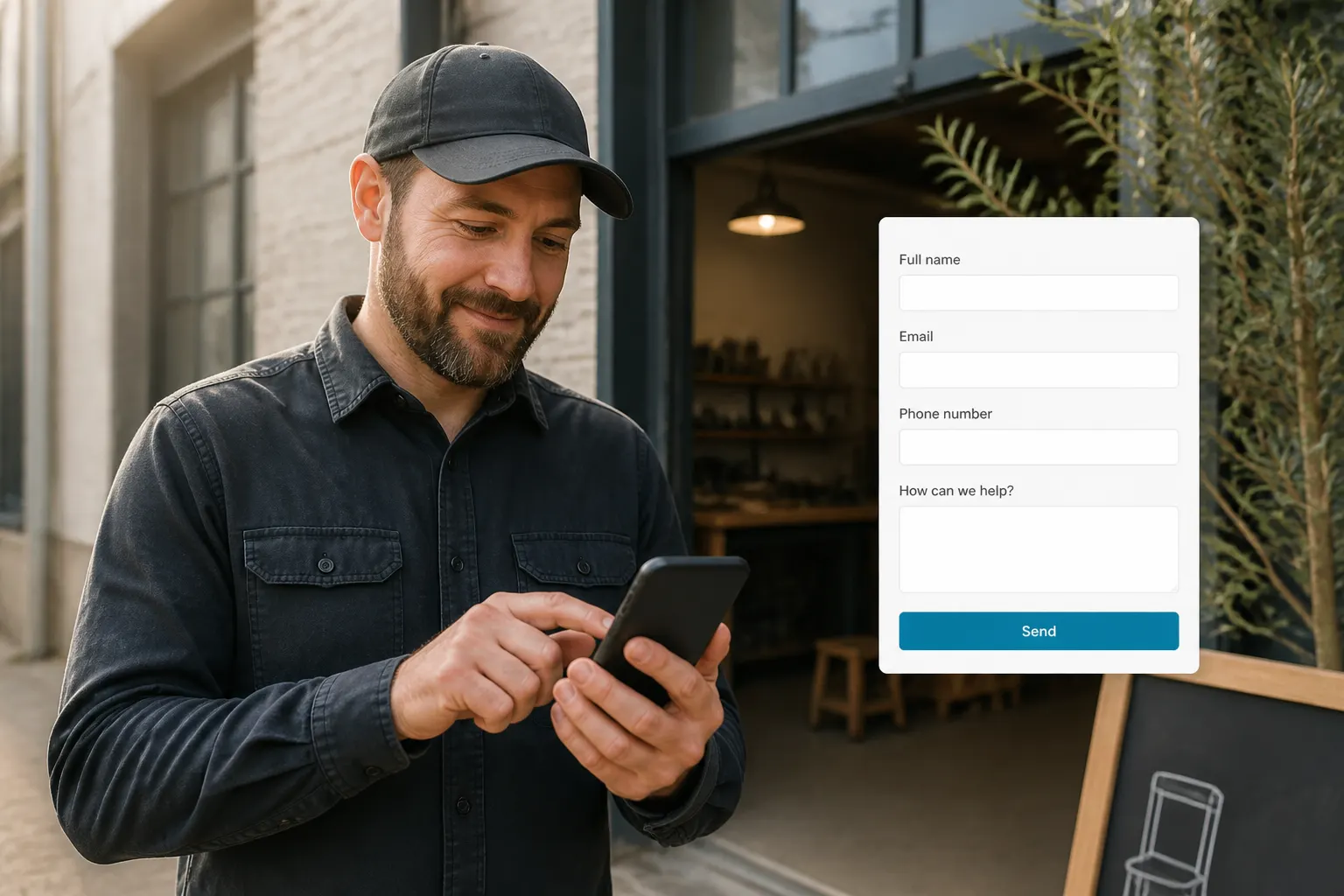
Confirm & follow up
Review new bookings in your workspace. Continue into CRM estimates or jobs when the visit becomes paid work.
Concrete booking capabilities
Not a toy widget — booking that lives with your page and business workspace.
Public booking block
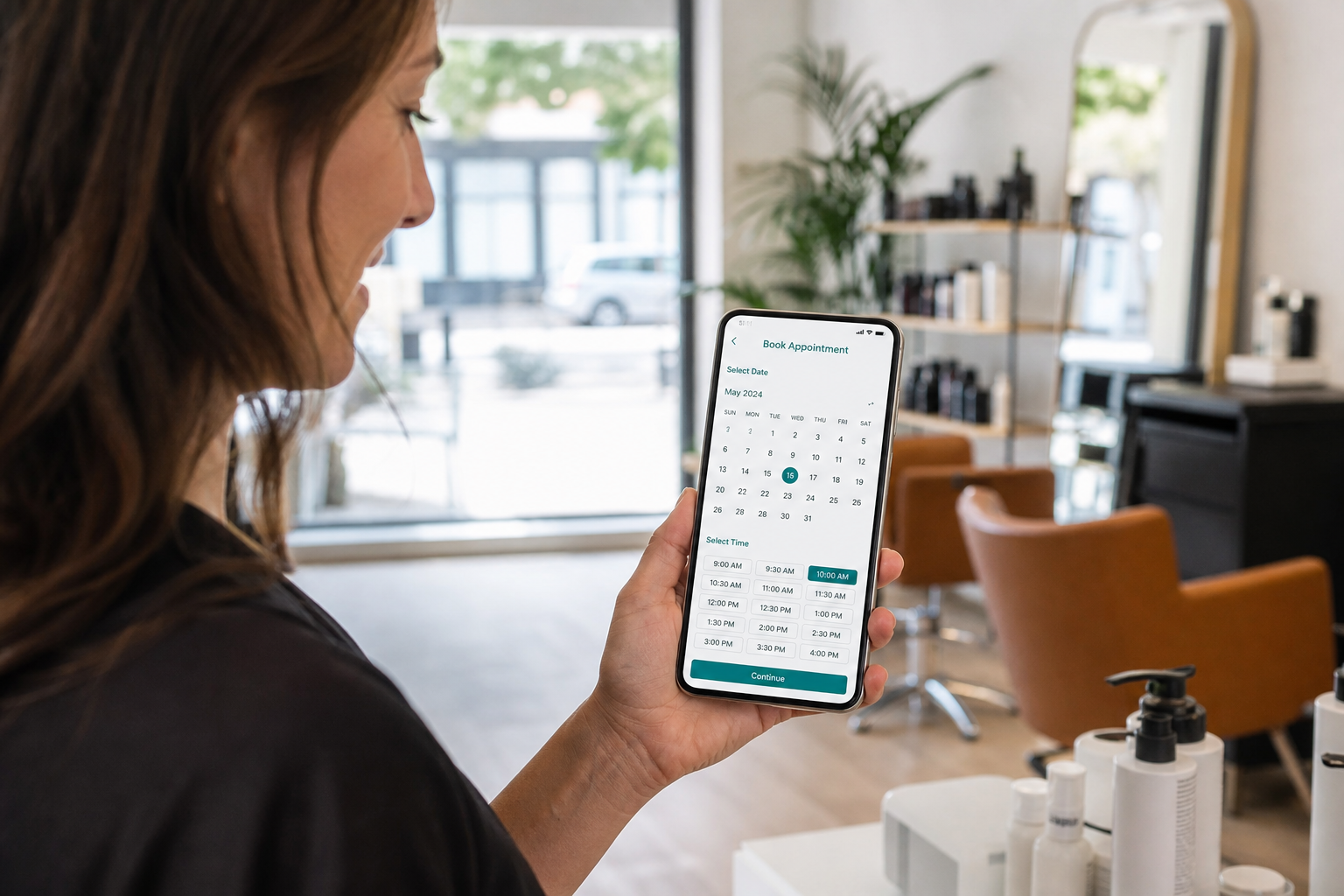
Visitors pick from the availability you publish on your FWDLink.
Workspace confirmation
New requests land where you already manage business — confirm and follow up without a separate inbox.
Same client spine as CRM
When a booking becomes a job, keep moving on the same brand and client context — estimates, media, invoice.
Pair booking with proof that sells the slot
Feature before/after albums or service menus above the book button so the calendar is not a cold ask.
Albums stay private until featured
Your library stays yours — publish only what belongs on the bookable page.
Automations can help
Remind or prioritize next steps when a booking lands — see Automations.
Ways to use it
Who books from a FWDLink
Beauty
Color consults & chair time
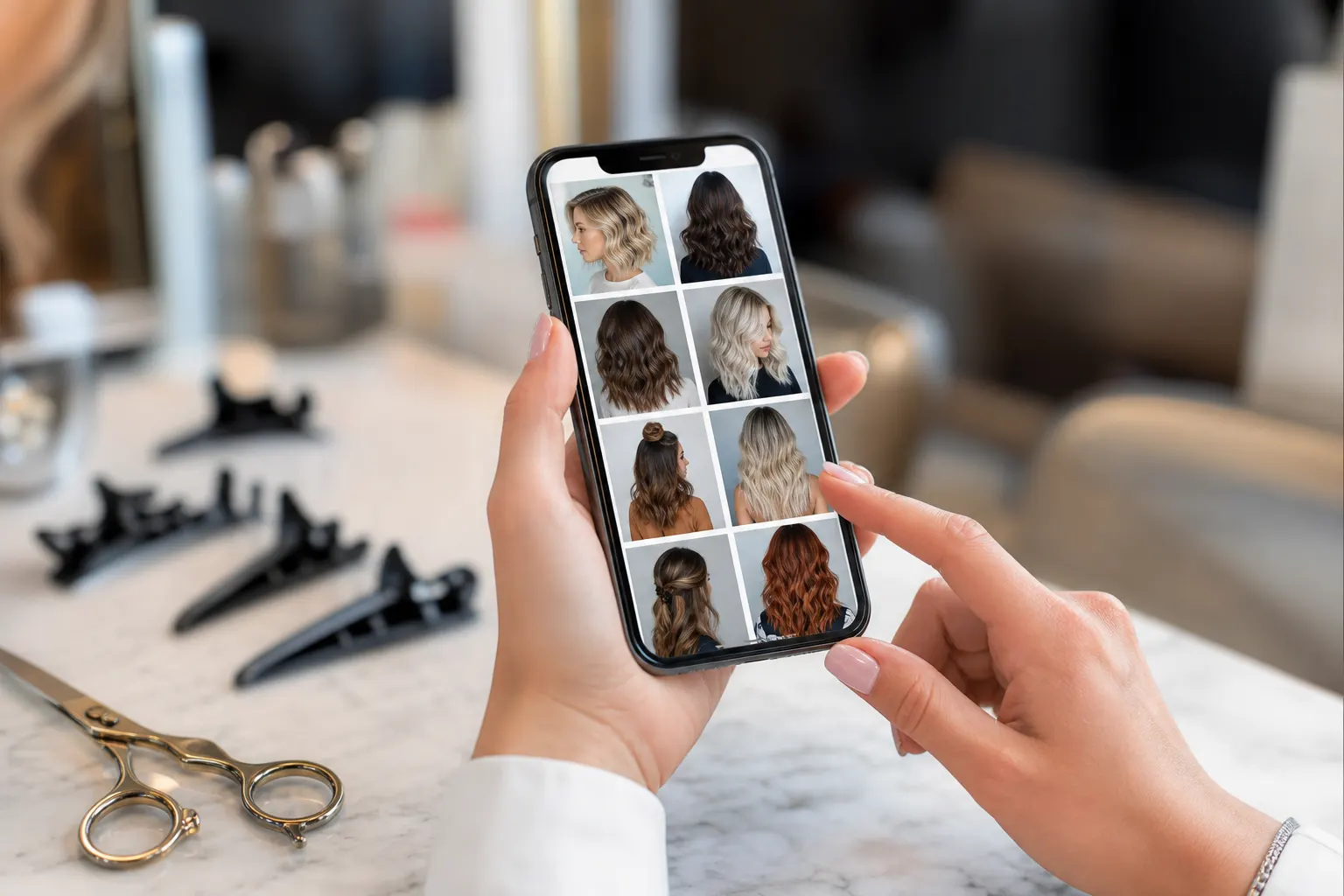
Show the lookbook, offer a consult slot, confirm in the workspace before the appointment day.
Contractors
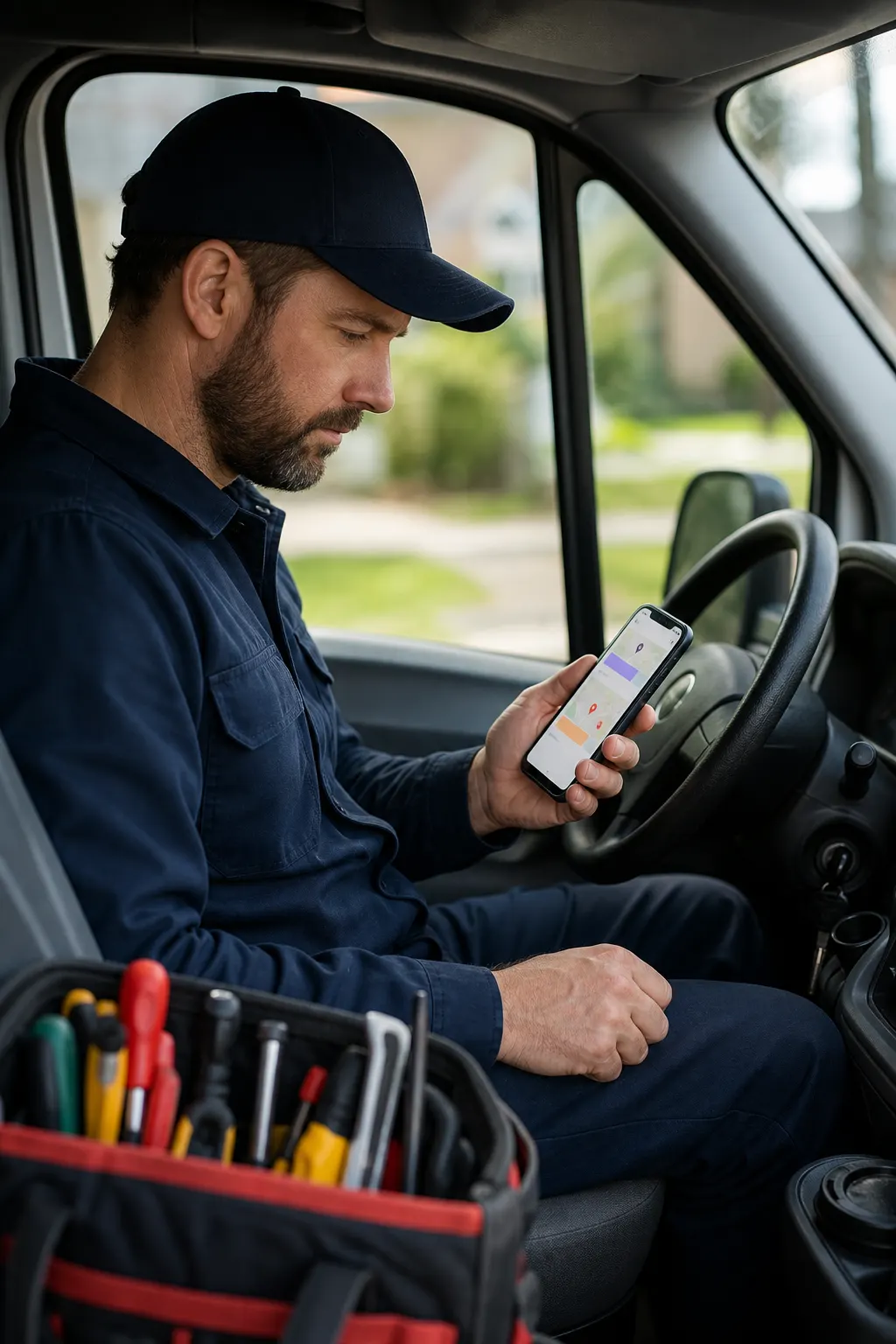
Site visits without phone tag
Let homeowners request a walkthrough window from the same page that shows recent jobs.
Coaches
Discovery calls that show up
Feature your offer, open a booking window, move hot leads into paid sessions.
Pet & home services
Recurring stops, clearer days
Clients rebook from your link; you keep the calendar tied to the people you already serve.
Studios
Sessions next to the gallery
Photographers and studios book shoots beside the albums clients already trust.
Local pros
QR on the counter
Print one QR to your page — walk-ins book the next opening without downloading an app.
Frequently asked questions
- Where do I manage availability?
- In your business workspace under Business → Bookings — then add a booking block to your public page.
- Is booking separate from CRM?
- Booking lives on your page and in the business workspace. When work continues, the same FWDLink brand and client context carry into estimates, jobs, and invoices.
- Can I show my work above the book button?
- Yes — feature albums, links, and service copy on the same page as booking so visitors understand what they are booking.
- What about fees?
- See current CRM / booking-related fees on Plans — we keep rates on the Plans page, not buried here.
- Do clients need an app?
- No. They open your FWDLink in the browser, pick a time, and you confirm from your workspace.
Put booking on the link you already share
Claim your page, add a booking block, and confirm appointments where you already run the business.